
|
iQue Forecyt® Reference Guide (Version 10.0)
|
Customize (Well Type)

Note: iQue Forecyt® provides the capability to customize well types and the process for doing so is described here. However, this is not the best way to annotate your experiment because when you create custom well types, this information cannot be copied to another plate after data has been acquired. Annotation that can be copied to other plates is described in Add New Layer.
Click the Customize button to access the Edit, Add, Edit and Delete custom well type values that will be added to the well type list. The dialogue shown in the following screenshot initiates Customization.
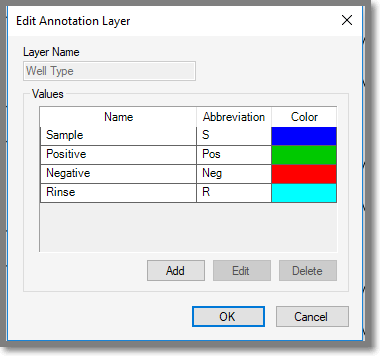
The default colors and well types are listed along with abbreviations. When you click Add, another window opens where you will give the well a descriptive name. iQue Forecyt® will automatically abbreviate it to the first two letters of the word but you can change this if you wish to any one to three letter abbreviations.
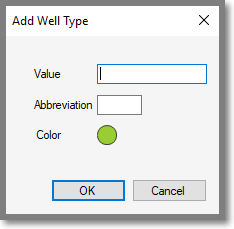
iQue Forecyt® has a default color it assigns to the customized well. However, you can change this too. Click on the colored circle and the Select Color pane opens so you can select a different color.
iQue Forecyt® adds the new well label to the list at the top of plate map as shown in the screenshot below where Outside Wells was added to the list.
