
|
iQue Forecyt® Reference Guide (Version 9.0)
|
Lock, Unlock, Export, Rename, Delete

The Open Experiment screen provides both information about experiment files and the ability to Lock, Export, Rename and Delete experiments.
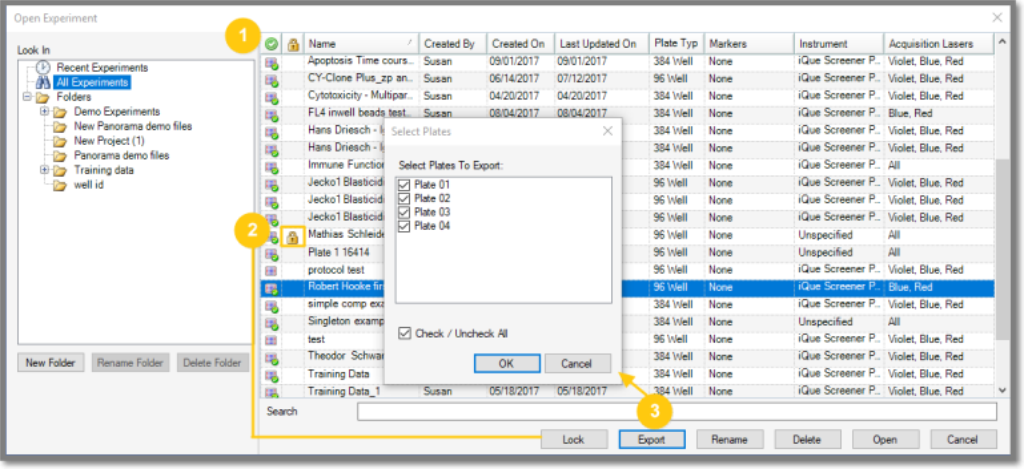
If there is a green check mark next to an experiment file name (1) it means at least one plate has FCS data attached.
Clicking Lock (2) puts the file in read-only mode so it can’t be modified. Clicking on the lock icon will change the Lock selection to Unlock. Locking a file is useful for preventing accidental changes to an experiment. Only Team Members associated with a particular experiment can Lock or Unlock an experiment.
Click on an experiment you wish to Export (3) (Robert Hooke experiment in the screen shot). A window opens that allows you to specify the plates. When you click OK a window opens that allows you to choose where to save the experiment on your hard drive. The file will be saved in the .IEX, an iQue® Experiment file format. These experiments can then be imported by other iQue Forecyt® users if their version of iQue Forecyt® is not older than the version of iQue Forecyt® the from which the experiment was exported.